
Start here: your CRM, Inbox and AI agent
Most of your day happens in three places. The CRM board holds your leads, the Inbox holds their WhatsApp chats, and the AI agent answers new leads on your number until you step in.
This page is the short tour. Each section links to the full article when you want the detail.
Your CRM board
Section titled “Your CRM board”Open CRM in the left rail, then Contacts. Each column is a stage and each card is one lead, so the board shows at a glance what you owe each person next.
Find a lead
Section titled “Find a lead”Search contactsfinds a name or a number.Gridshows the same leads as rows, which is faster for scanning a long list.Filternarrows the board by stage, last touch or any field you keep.- The ready-made views above the toolbar answer the daily questions:
Follow-ups due,Never contactedandNo next step.
See Filter contacts and save a view to keep your own.
Move a lead along
Section titled “Move a lead along”Drag the card to another column. On a phone, press and hold it, then pick Move to stage.
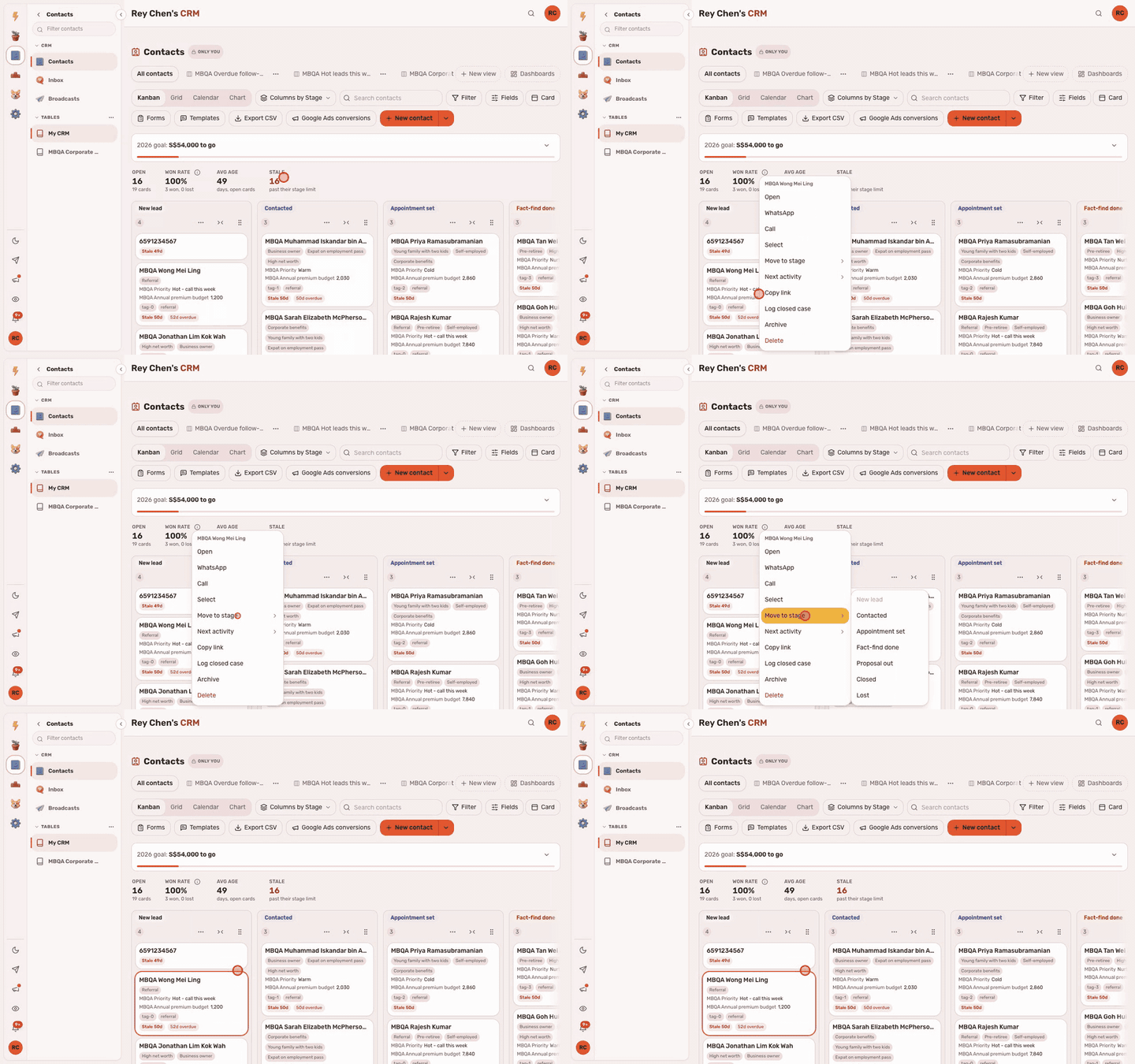
The same Move to stage is on a right-click, and the record has a Pipeline stage ladder too. To add somebody by hand, press New contact and type the name. See Add a contact and move it through stages.
Spot the leads going quiet
Section titled “Spot the leads going quiet”The strip above the columns counts your open cards, your won rate, the average age of open cards, and how many are stale. A card turns red with Stale when it has sat in its stage for 14 days with nothing happening, unless you set another limit for that stage.
See Spot the cards going quiet for how the count works.
A lead’s record
Section titled “A lead’s record”Click a card and its record opens in a panel. Open full page gives it the whole screen.
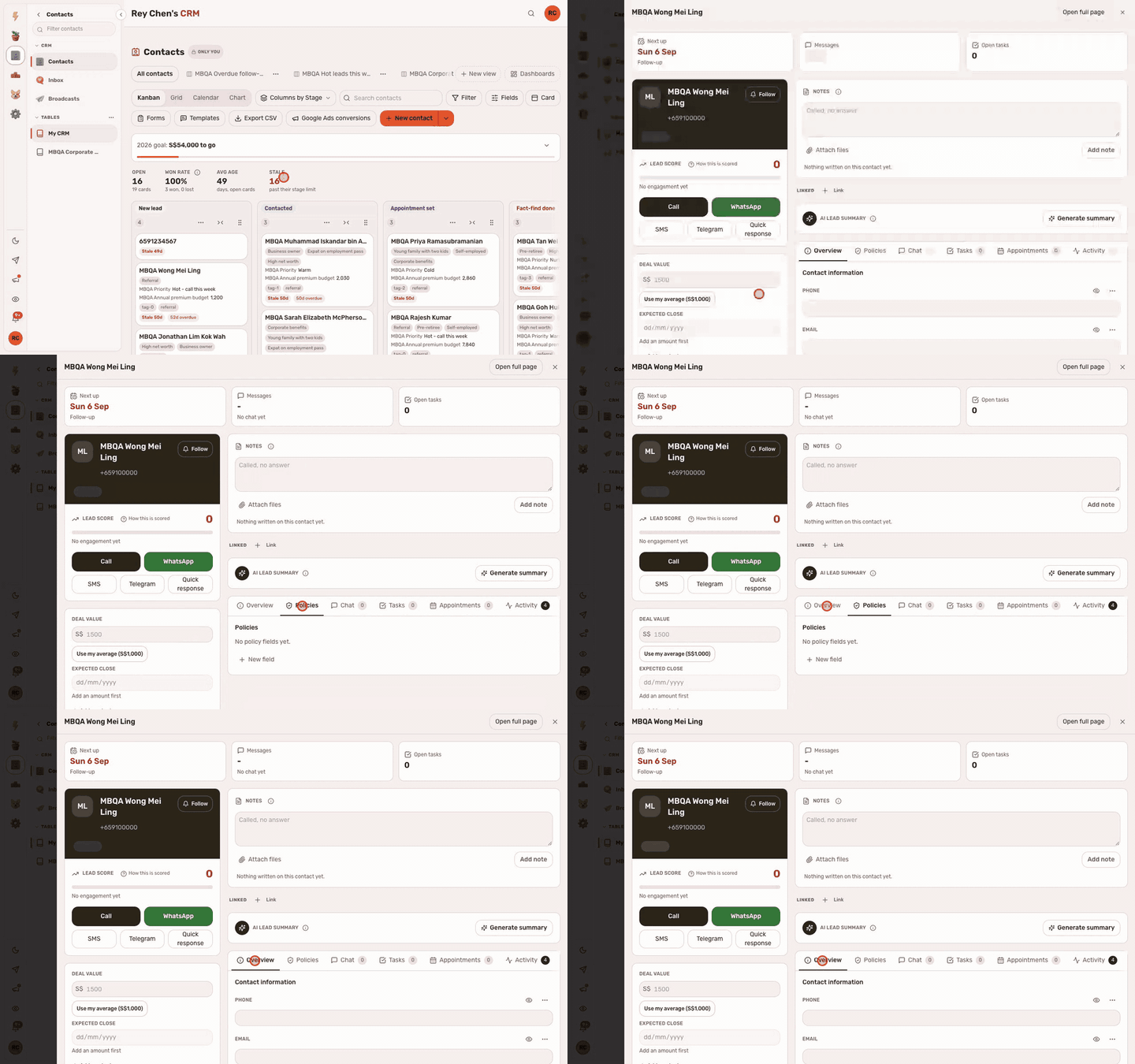
Call,WhatsApp,SMSandTelegramsit under the name.Quick responsefills one of your saved templates with their name. See Message a contact from their record.- Type in the
Notesbox and pressAdd noteto keep what you learned. Overviewholds their details. On a book with lots of fields, the blank ones fold away underShow 6 empty fields, so the filled ones are easy to read.Chatis their WhatsApp thread.Tasks,Appointments,ActivityandRelatedfollow.
The Policies tab
Section titled “The Policies tab”Policy summary links, premiums and the other policy details sit on Policies, away from the lead’s details.
To put a field there, press the ... beside it on Overview and pick Move to Policies. See Keep policy details on their own tab.
The Inbox
Section titled “The Inbox”Open CRM, then Inbox, then Conversations. It holds every WhatsApp thread on your number, with the list on the left and the open chat on the right.
Answer a lead
Section titled “Answer a lead”- Pick a name in the list.
- Type in the box at the bottom.
- Press
Send, or press Enter.
Your reply goes out from your business number, never your own WhatsApp. Start with Needs you: those are the chats waiting on a person, such as a lead who wrote last with no AI agent answering them. See Answer a lead in Conversations.
Use a quick reply
Section titled “Use a quick reply”Type / in the message box and your saved replies open, with the lead’s name already filled in. Nothing goes out until you press Send.
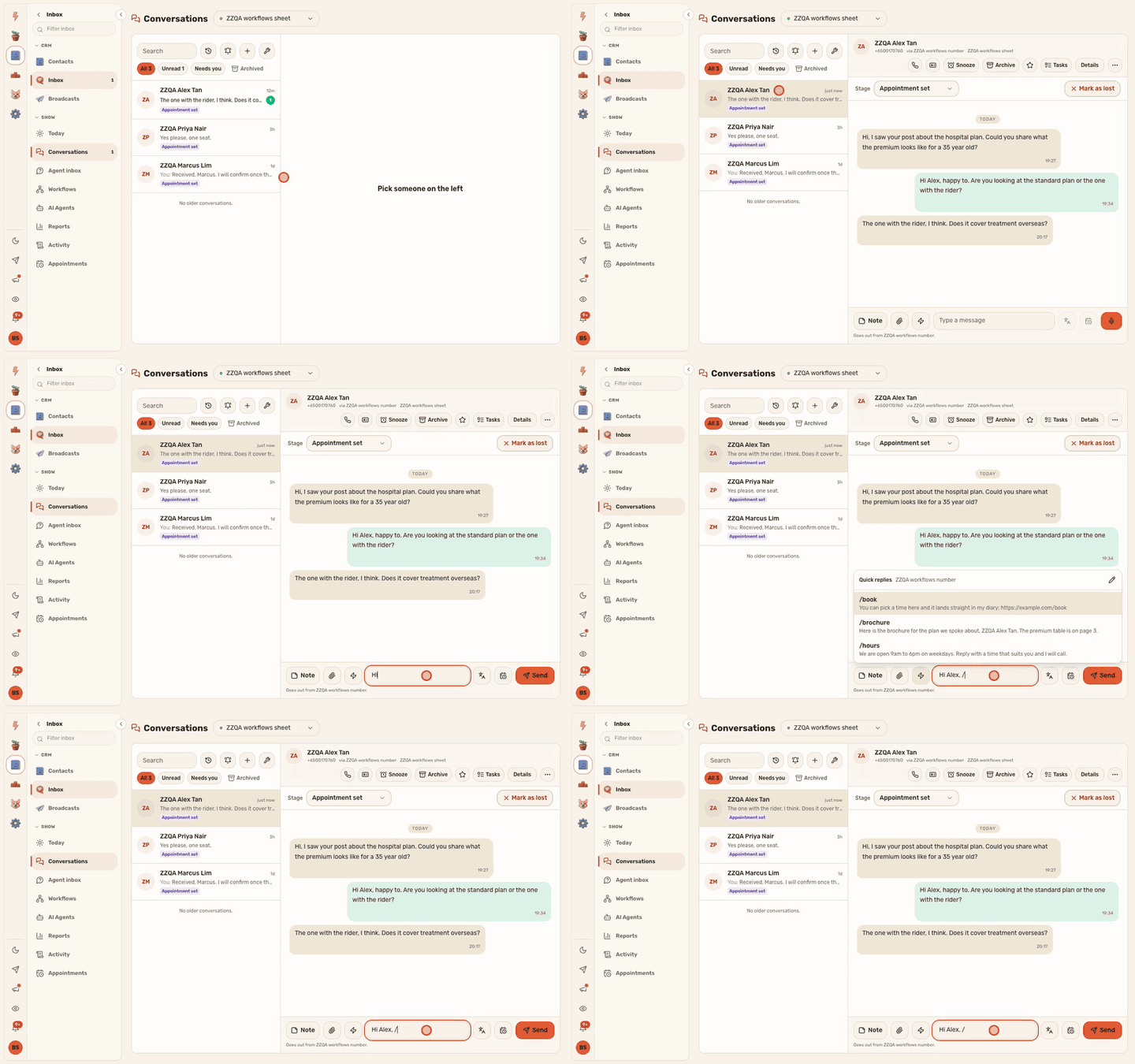
To save a new one, type the shortcut you want, such as /zoom, and press Save /zoom as a quick reply. See Save and use quick replies.
Move the card, or read their details
Section titled “Move the card, or read their details”The Stage bar under the chat header moves the lead’s card, and Mark as lost moves it to Lost. Details opens the chat’s labels, the lead’s notes, the reason when a chat was handed over, and their contact card.
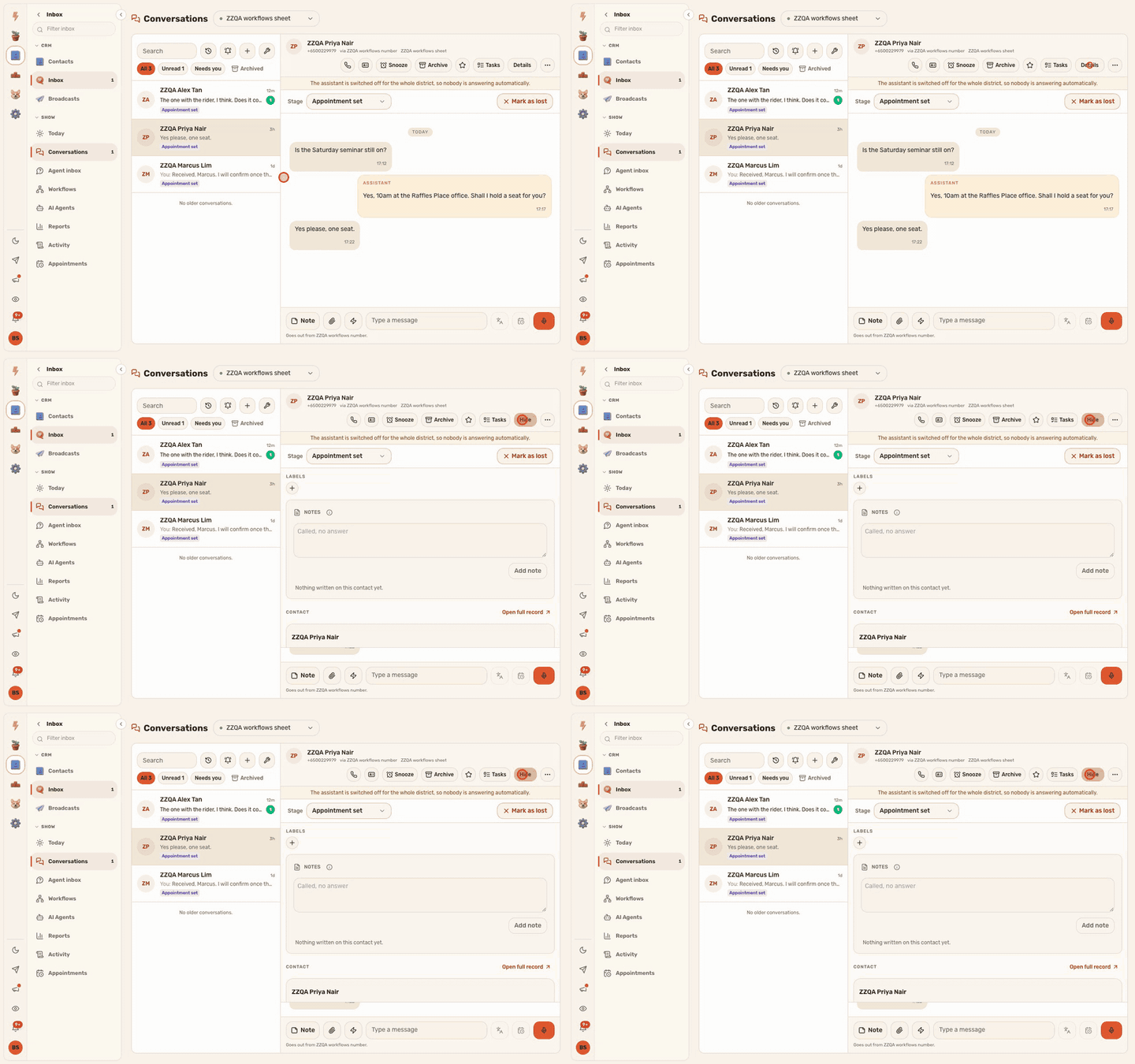
When a colleague or a workflow hands you a chat, your bell rings and a Handed to me chip appears above the list. See Work handed to you.
The AI agent
Section titled “The AI agent”If an AI agent answers on your number, it replies to new leads, asks your questions, offers times from your Pick a Time page and books the meeting. You can step in at any point.
See who’s answering
Section titled “See who’s answering”On a number with a published agent, a strip across the top of each chat says who has it. AI agent is handling this chat means the agent is answering, and the line under it counts its replies. When you have the chat, the strip says you’re handling it.
Take over, or hand it back
Section titled “Take over, or hand it back”- To take over, just reply. The moment your message goes out, the chat is yours and the agent stops. A message sent from the phone itself does the same.
- To stop the agent without writing, press
Stop AIon the strip. - To give the chat back, press
Back to the agent. You can tell it what to do next, such as “Offer two times for a Zoom call next week”.
The agent also hands a chat to you by itself when it isn’t sure of the answer or after 50 replies. See Take over from an AI agent, or hand a chat back.
What it writes on the card
Section titled “What it writes on the card”The agent fills empty fields with what the lead wrote, such as their age or occupation, and it never writes over something you typed. When it isn’t sure, the detail waits on the record under AI agent until you press Use this or Dismiss. See Review what the AI agent heard.
Keep it working
Section titled “Keep it working”Keep your calendar right
Section titled “Keep your calendar right”The agent only offers times your Pick a Time page says are free. A trip on a calendar Pick a Time doesn’t read looks free to it.
- In Pick a Time, open your booking page’s calendar settings.
- Under
Does this look like all your calendars?, tick every calendar whose events should block bookings. - For a calendar somebody else owns, have them share it with you, then add it under
Block times from another calendar.
Events marked Free in Google Calendar don’t block anything, so set your trips and meetings to Busy. See Connect Pick a Time, Google Calendar and your booking link.
Keep your number safe
Section titled “Keep your number safe”WhatsApp restricts a number that writes to too many people who never wrote to it first. Number heat scores each of your numbers for the day, and at High every message the business starts waits until tomorrow, though replies still go out. See Keep a WhatsApp number from being restricted.
Moving over from Lark
Section titled “Moving over from Lark”If your leads came over from Lark, each one sits in the stage it had there. Cards you already had kept their name and stage, and only their blank fields were filled in.
- What you had under “Information about client” is a note on each lead.
- Leads Lark had as dead, not suitable or blacklisted are in Lost, with the reason.
- They count toward
Stalefrom the day they arrived, not from their date in Lark.
Does the lead see my personal number? No. Every reply leaves from your business number.
Can I message somebody who isn’t in the Inbox yet?
Yes. Press the + beside the search box, type their number under Their number and press Open the chat. Singapore numbers work without +65.
Will the agent change something I typed? No. It only fills empty fields, and anything else waits for you to accept it.
Why does an old lead say No activity yet? Nothing has happened on its card in ActivityTracker yet. A note, a done task, a WhatsApp message or a stage move changes that.